
CPU Overheating Solutions
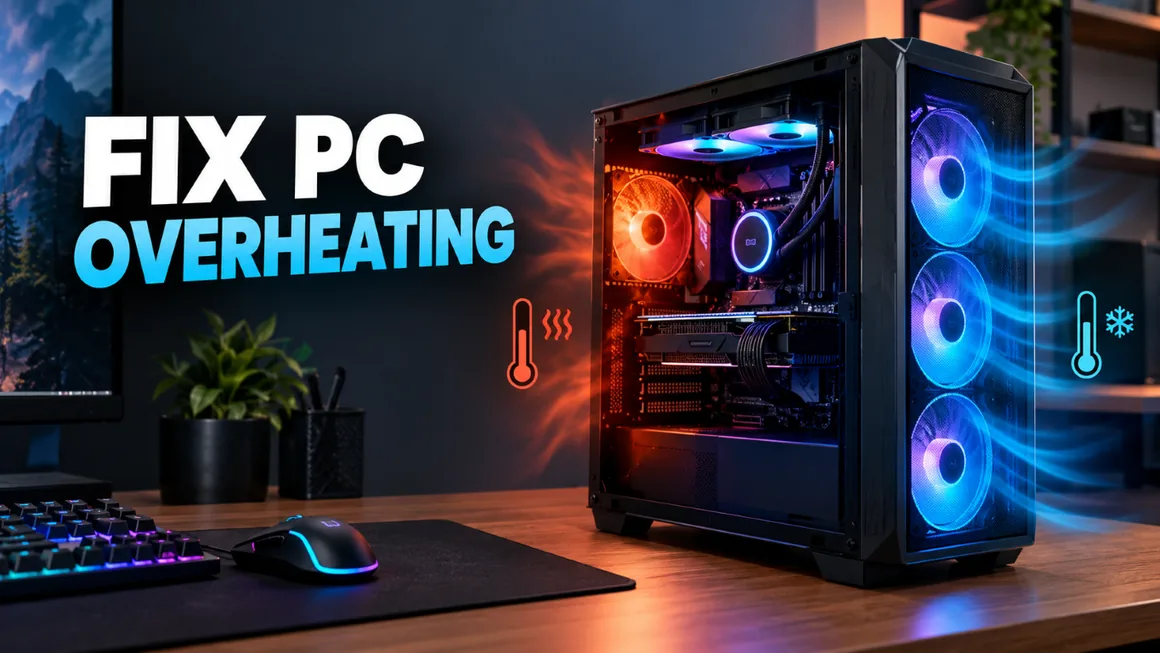
If you're a gamer who spends more time than an average person on computer, then knowing How to Fix Computer Overheating problems yourself can save you a lot of money.
If you’re a gamer who spends more time than an average person on a computer, then knowing how to fix computer overheating problems yourself can save you a lot of money. CPU overheating is a common problem for gamers to face. Even the latest hardware can cause a lot of issues while playing games if we ignore compatibility when choosing our gaming PC parts.
After getting a compatible motherboard, the CPU and GPU need to have soulmate-like compatibility with each other so they don’t get bottlenecked, because this can be the reason your CPU or GPU isn’t performing at its full potential and gets overheated from handling more load than it should. There are many best gaming GPUs for Best Graphics Games in the market, but choosing which works best with your processor is very important.
Now, for fixing PC heat problems, below are the steps tested and suggested by professionals that can fix or prevent your PC from overheating.
How To Fix Overheating Computer
Analyze The PC Component’s Temperature
Before fixing the problem, we need to analyze the temperatures in real time when your PC is idle and when you’re gaming, to see if it really needs fixing. (Our recommended software is Speccy.) Ideal CPU or GPU temperature when idle should be below 35°C and must not exceed 85°C at full performance. If they’re running higher than they should, follow the steps below in order.
Clean Your PC
First of all, clean your PC from dust to keep the required airflow between its components. We should clean our PC at least once a month to keep the fans dust-free so they can exhaust all the heat. You can do it yourself if you have an air blower at home, or hire a technician to do a full service on your PC. If you’re doing it yourself, then make sure to detach the things you can, including RAM, hard drive, and graphics card, before using the blower, and clear the air vents completely.
Control Fans Speed
If the computer still isn’t performing well after cleaning it, check the fan speed settings and adjust them according to your hardware. You can do this from BIOS or use fan-controlling software for all your PC fans. MSI Afterburner is one of the best pieces of software for this purpose and supports most hardware. It’s recommended to select one of the presets for airflow and avoid adjusting fan RPM manually.
Disable Extra Background Processes

You can also use game-boosting software to easily achieve this and have a good gaming experience without overheating your PC. It will help you get rid of unnecessary background processes when you start a gaming session and turn everything back on when the game is closed.
Avoid Overclocking
You should avoid overclocking your CPU or GPU because it can lower the lifespan of your PC hardware, resulting in overheating over time. Turn it off if you’re doing it.
Replace Thermal Paste
After doing all of the above and still getting excessively high temperatures, check and reapply thermal paste under the heat sink if needed. Hire someone for this task if you’re not willing to get under the hood, because the right amount and correct technique are very important — doing it incorrectly can seriously damage your CPU or GPU.
Remove the fan and heat sink to change the thermal paste, and make sure to clean off the traces of the old, dried thermal paste from the processor with a soft cloth. The paste should spread evenly across the chip with no air gaps when you put the heat sink back on, and the amount should be neither too little nor too much. See the picture and video below for reference.
Conclusion
All of these methods have been proven to work in different situations when a PC overheats and starts lagging in the middle of work or a gaming session. We shouldn’t delay fixing this when our gaming machine isn’t performing as usual, and cleaning the computer regularly should be the first priority, since most problems start with dust blocking the airflow. Whether you’re running a high-end machine or an average PC, and whether you use it for office work or to play low-end PC games, you should know how to fix computer overheating yourself for these small problems.
Related Posts

Amazon Luna Review + Guide – Best Cloud Gaming Service Yet
Amazon Luna offers a smooth, easy-to-use cloud gaming platform with a straightforward experience.

GTA 5 Modding | Mods Tutorial Explained Easy | Top Mods Included
While having a massive online community, Grand Theft Auto also has one of the biggest active communities for GTA 5 modding.

Mods for Games – Complete Guide for PC Mods
What game modding is, DLC vs mods, where to find mods (Steam Workshop, Nexus Mods), how to apply them safely, and the best games with the largest modding communities.